

Most marketers use AI wrong and cannot automate their work. Claude Cowork changes both. This guide shows you how to set it up, how to work with it, and gives you 20 use cases to start today. Let’s kick of our Mini Series Claude for Marketing and Sales:
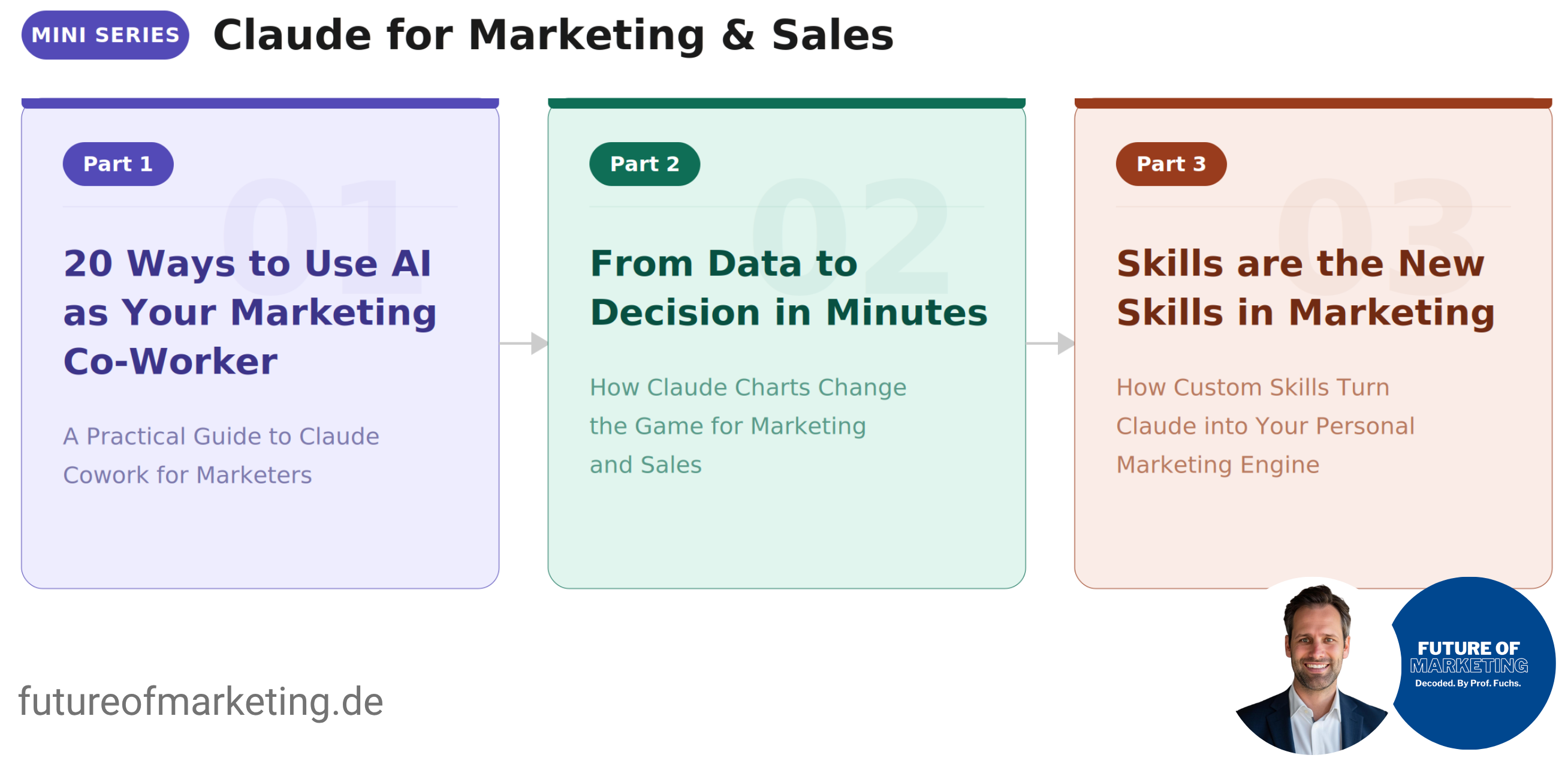
Part 1 (this guide): 20 Ways to Use AI as Your Marketing Co-Worker: How to set up Claude Cowork, how to work with it, and 20 use cases to start today.
Part 2: From Data to Decision in Minutes: How Claude Charts turns marketing data into interactive visualizations and dashboards.
Part 3: Skills are the New Skills in Marketing: How to create custom Skills that make Claude permanently better at your specific marketing work … with 10 ready-to-use Skill templates.
Be honest with yourself.
When was the last time you left the office thinking: “Today I did real marketing work”?
Not reformatting slides. Not rebuilding reports. Not rewriting the same briefing for the fourth time.
Real work. A decision that mattered. A strategy that moved something. Content you were proud of.
If you have to think about it, that is the problem.
Most marketers spend their weeks on repetitive tasks. Every document starts from scratch. Every report gets stitched together by hand. The same patterns, every week. All manual.
You know these tasks should be automated. There are tools for it. n8n. Make. Zapier. HubSpot workflows.
But nobody says this out loud: you were never trained for this. You studied marketing. Not workflow engineering. You know exactly which tasks eat your time. You just cannot automate them yourself.
And the AI tools you do use? You type a prompt. Get text back. Copy it. Paste it. Reformat it. Realize it does not match your voice, your brand, your context. Fix it by hand. That is not AI helping you. That is another task on the pile.
Two problems. No solution. Until now.
When Anthropic launched Cowork in January 2026, it wiped $285 billion off global software stocks in a single day. Not because of a new chatbot. Because Cowork lets marketers automate their tasks without building anything. No drag-and-drop. No API connectors. No technical setup. You describe the task. Cowork does it. Reads your files. Follows your brand voice. Produces real deliverables.
For the first time, the marketer who knows what needs to happen can make it happen. Without a developer. Without an automation specialist. Without learning tools that were never built for marketers.
This is an amplifier. It takes what you already know about marketing and multiplies your impact. Same thinking. Same standards. Same voice. But with a force behind it that one person could never have alone.
Every marketer needs to understand what this tool can do. This is the guide I wish someone had written for me when I started.
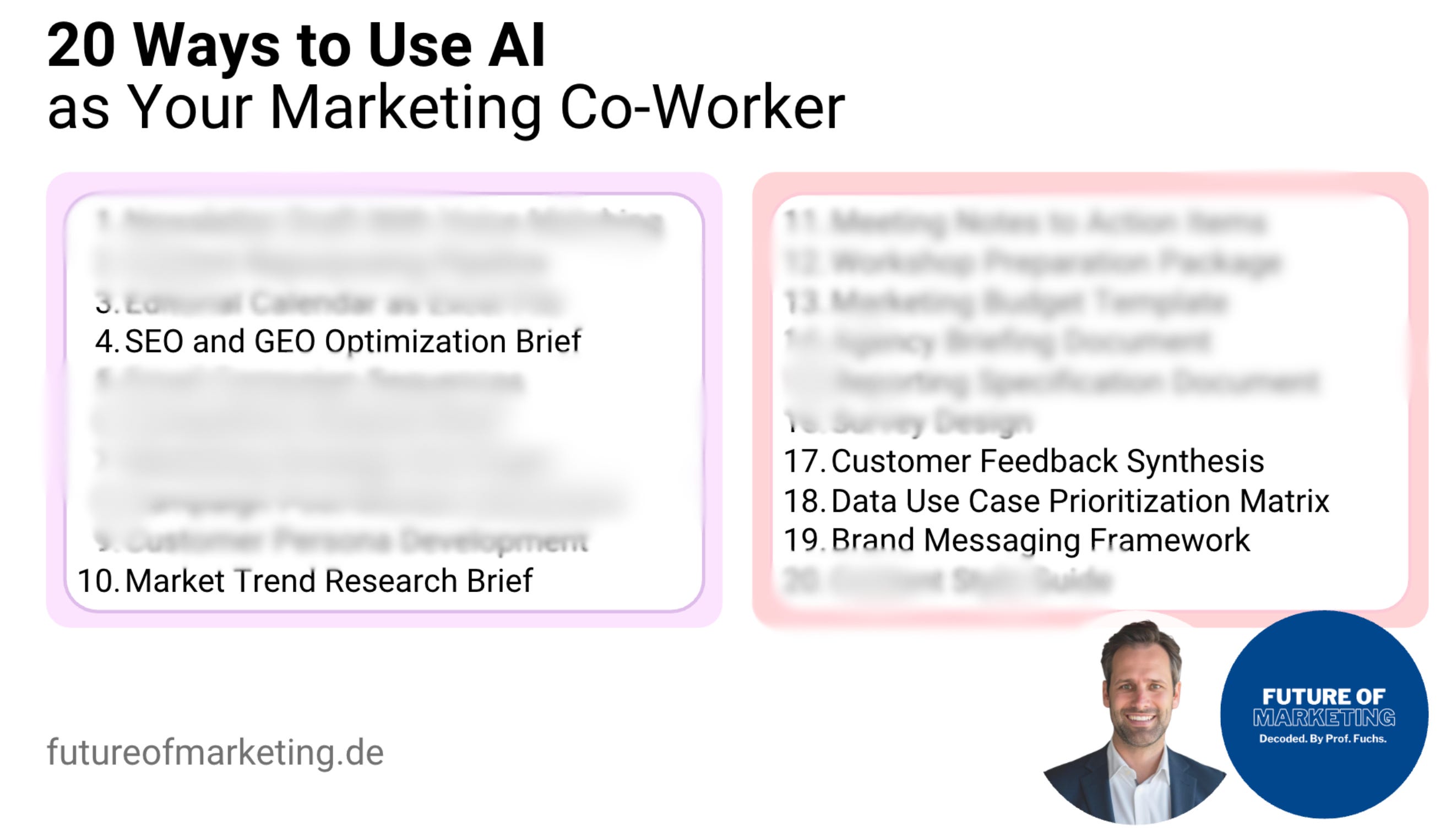
👉 How to set it up. How to use it right. And 20 use cases to start with today (read until end of article to see the full use cases incl. prompts).
What Is Claude Cowork? (And Why Should Marketers Care?)
Claude Cowork is not a chatbot. It is not another AI writing assistant. It is a work environment built into the Claude desktop app that changes how you interact with AI.
One thing it does not do: images. Cowork is built for text-based deliverables. Documents, spreadsheets, briefs, strategies, scripts, and even code. If you need visuals or graphics, use a dedicated image tool. I use Gemini for that. Know the boundary, use the right tool for the job.
Three things make it fundamentally different from what most marketers are used to.
It creates real files. Not just text.
You ask for a content calendar. You get an Excel file. Not text formatted to look like a table. An actual .xlsx file you can open, edit, and share.
You ask for a workshop handout. You get a Word document. Formatted. Structured. Ready to print.
You ask for a research brief. You get a markdown file. Organized by theme. With sources.
This sounds like a small thing. It is not. Because the biggest time killer in AI-assisted marketing work is not the generation. It is the reformatting. The copy-pasting. The manual transfer from “AI output” to “usable deliverable.”
Cowork eliminates that step entirely.
It works with your context. Not generic templates.
This is where it gets interesting for marketers.
You can upload your brand guidelines, your writing style, your strategy documents, your past campaigns, your tone of voice rules. Cowork reads all of it. And it works within that context.
The output is not “AI-generated content.” It is content that sounds like you, follows your brand rules, and builds on your existing strategy.
Most AI tools start from zero every time. Cowork starts from where you are.
It works in sessions. Not single prompts.
Real marketing work is not a single question. It is a process.
You start with a brief. You get a first draft. You refine the angle. You adjust the tone. You add a section. You remove another. You pivot. You iterate.
With a typical chatbot, you lose the thread after 15 minutes. The AI starts repeating itself. Or contradicting what it said earlier. You open a new chat and start over.
Cowork handles multi-hour sessions. You can iterate, revise, and redirect without losing context. The AI remembers what you decided 60 minutes ago and builds on it.
For complex marketing tasks, this is the difference between “helpful” and “actually usable.”
It learns your workflows. Permanently.
This is where most people stop exploring. And where the real leverage begins.
Claude has a feature called Skills. A Skill is a set of instructions you write once that Claude follows from that point forward. Unlike a prompt that disappears when the conversation ends, a Skill persists. It lives in your account. It activates whenever the task matches.
Think about training a new team member. Day one, you explain how to write your reports. Day two, you explain it again. Day three, same thing. By week two, you are exhausted.
A Skill is writing it down once. Claude reads it, follows it, delivers the work exactly how you want. Every time.
The context files I describe in the setup section below (voice profile, brand context, working preferences) are the first step. They give Claude your context for a single session. Skills go further. They make your workflows permanent, reusable, and stackable.
For example: you can create a Skill for your monthly reporting format. Another Skill for your content approval process. Another for how you brief agencies. Each one fires automatically when the task matches. No re-explaining. No re-prompting.
And here is the part that matters for teams: Skills are shareable. You build one, your entire marketing team uses it. Same quality. Same format. Same voice. Every time.
You do not need to build Skills from scratch. Claude has a built-in skill-creator. Just type: “I want to create a Skill for [your use case].” Claude asks about your process, you answer naturally, and it generates the Skill file automatically.
Try this: “I want to create a Skill for my monthly reporting. Ask me about my process, then generate the Skill file.”
If you already have a conversation where Claude nailed the output, type “Create a skill to remember this.” One sentence turns a good conversation into a permanent workflow. You can also browse and install ready-made Skills from Anthropic’s official Skills library. Find one that matches your workflow, install it, done.
👉 Start with context files. Graduate to Skills once you see what Cowork can do.
How to Get Started. Step by Step.
Setting up Cowork takes about 10 minutes. But setting it up right takes a bit more thought. Here is the process I recommend.
Step 1: Install Claude and Open Cowork
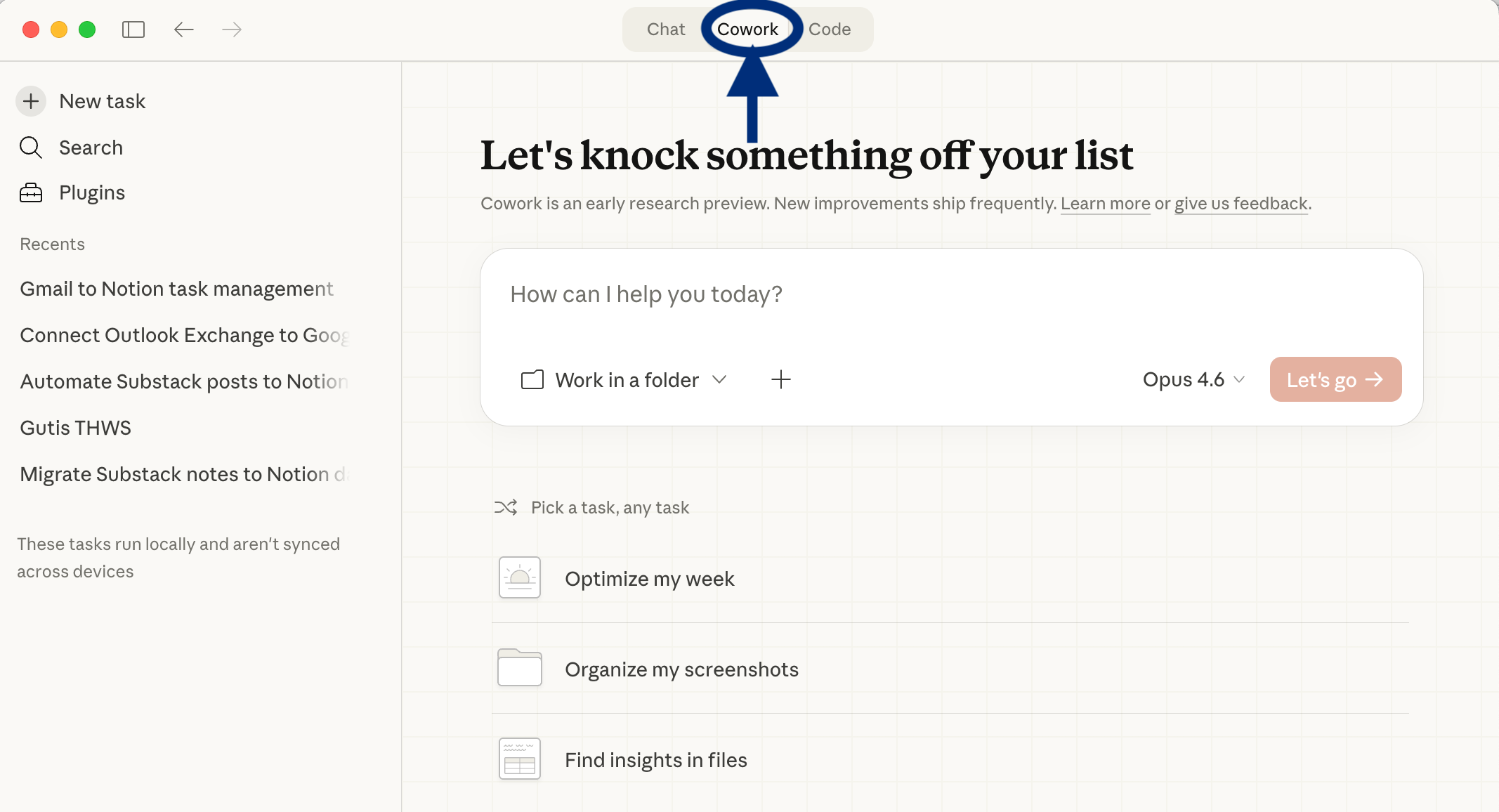
Download the Claude desktop app from claude.ai/download (it does not work in your browser). You need a Pro account ($20/month). Once installed, open Claude and switch to the “Cowork” tab at the top.
That is it. You are in.
Step 2: Configure Three Settings
Before you do anything else, turn on three settings that make everything work better. Most people skip this. Do not.
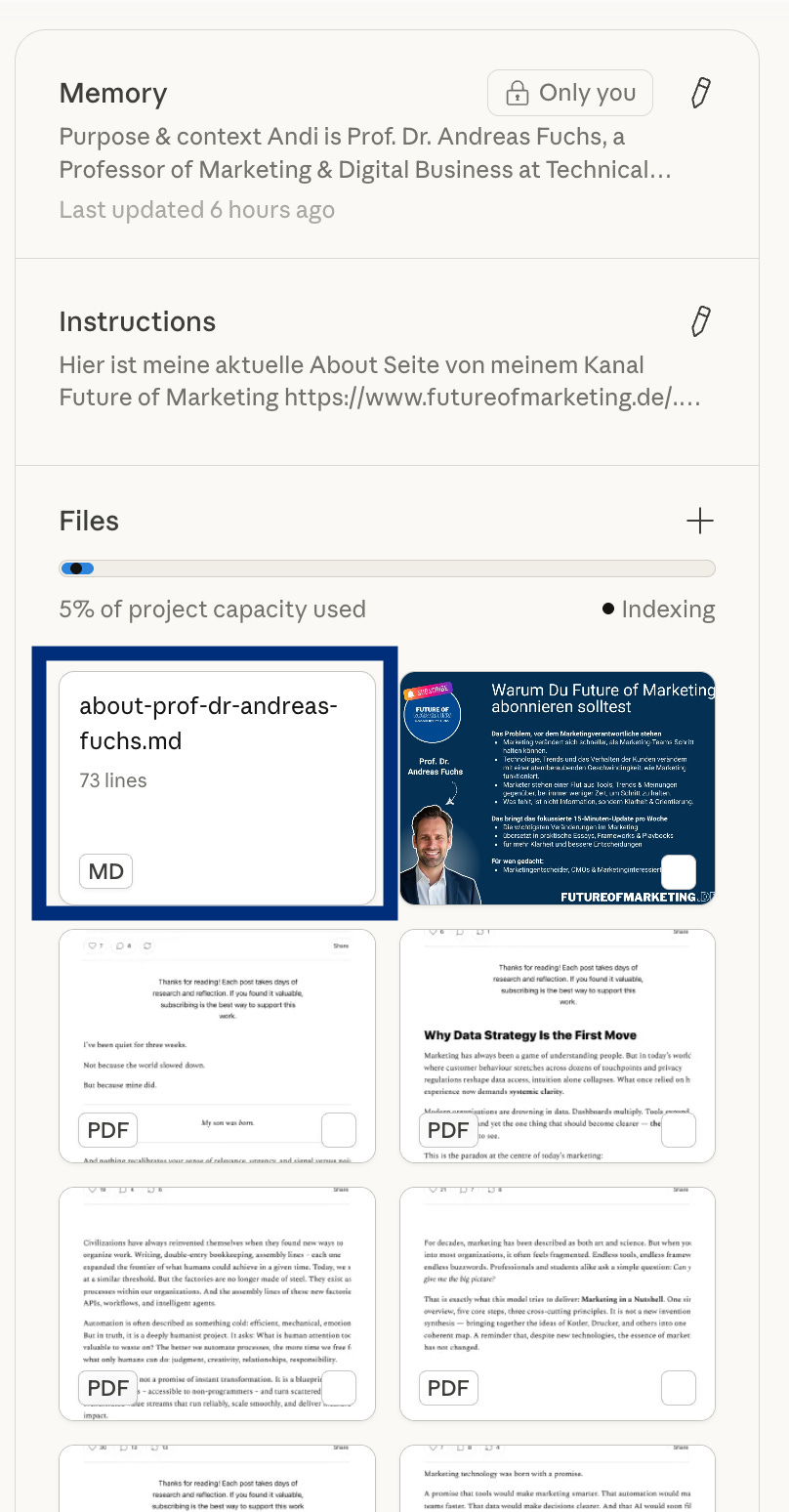
Memory (Settings > Personalisation > Enable Memory). Not on by default. Once enabled, Claude remembers your preferences across all conversations. It learns how you work over time. Without this, every new chat starts from zero.

Extended Thinking (Enable in settings or per message). Claude reasons step-by-step before answering. You see its thinking process in grey text. It uses more tokens but produces significantly better output for complex tasks like strategy documents, research briefs, and multi-step workflows.

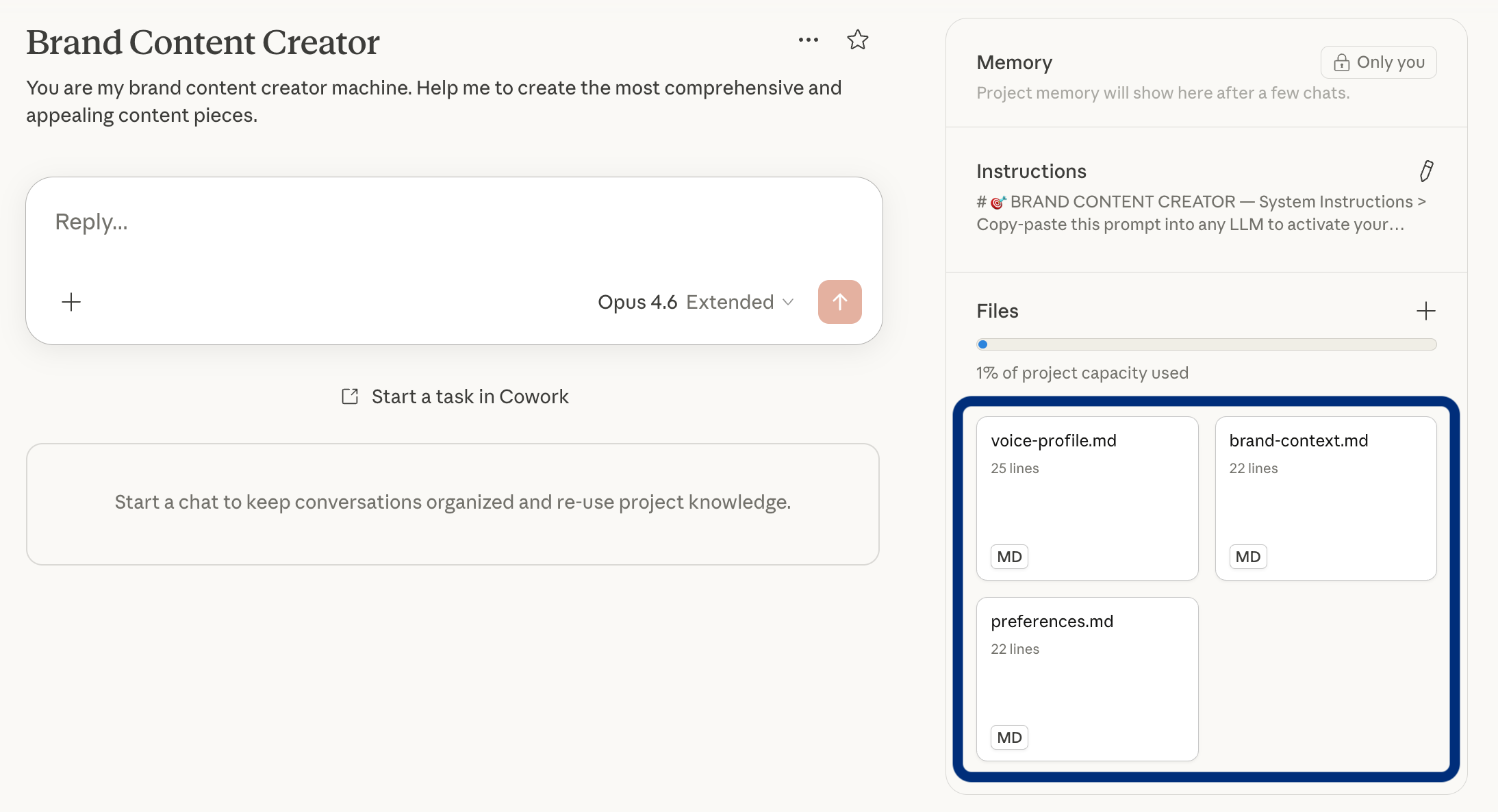
Projects (Available in the sidebar). This is where it gets powerful for marketers. Create a Project for each client, campaign, or content series. Upload files as persistent context. Add project-specific instructions. Every conversation inside the project shares the same context. Your brand guidelines, your strategy documents, your voice profile. All of it is always available. No re-uploading. No re-explaining.
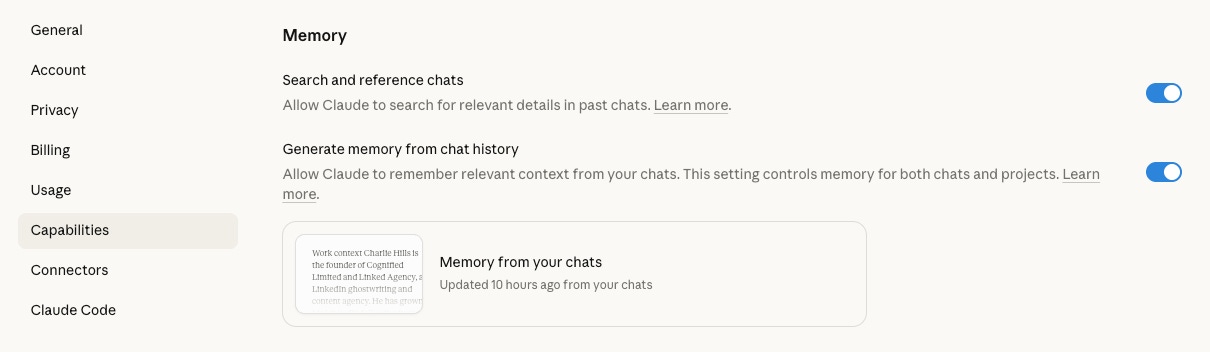
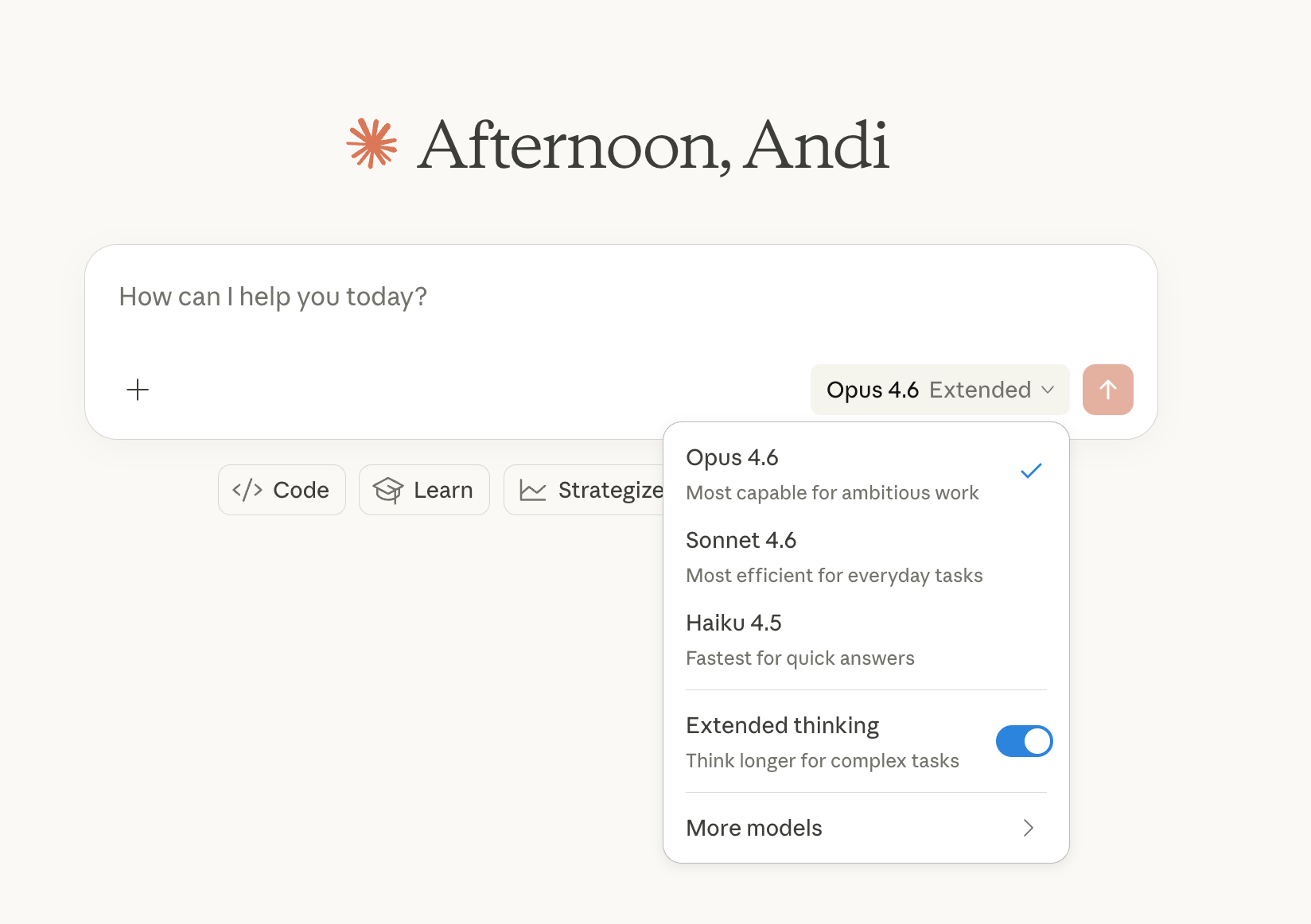
👉 Memory works across Projects. Your preferences follow you everywhere. Projects keep your marketing work organized and your context persistent.
Step 3: Build Your Marketing Context Files
This is the most important step. And the one most people skip.
Before you start your first real task, create a set of context files. Think of them as your onboarding package for a new team member. The better the briefing, the better the output.
Here is what I recommend:
File 1: Voice Profile (voice-profile.md)
This file describes how you write. Not what you write about. How.
Include things like: your typical sentence length. Whether you use short punchy openers or longer introductions. Words and phrases you always use. Words and phrases you never use. Whether you use emojis and which ones. How you structure arguments. How you close articles or posts.
The more specific, the better. “Professional but approachable” is useless. “Short sentences for key points. Longer sentences for explanations. Never use em dashes. Always end with 👉 for key takeaways.” That is useful.
👉 Pro tip: take 3 of your best pieces of content and reverse-engineer the patterns. What makes them sound like you?
👉 Not sure how to create a markdown file? You don’t have to. Ask Cowork: “Read these 3 articles and create a voice-profile.md file based on them.” It builds the file for you. That is the whole point. And if you have been using ChatGPT or another AI tool before, you can ask it to create the markdown file for you there and then upload it to Cowork.
File 2: Brand Context (brand-context.md)
This file describes your brand. Your company’s positioning. Your target audience. Your value proposition. Your key messages. Your competitive landscape.
If you have an existing brand book or positioning document, you can upload that directly. If you don’t, create a simple markdown file with the essentials.
File 3: Working Preferences (preferences.md)
This file tells Cowork how you like to work. Do you want it to ask clarifying questions before starting? Or just deliver a first draft? Do you prefer bullet points or prose? What level of detail do you expect? What file formats do you want?
This might feel unnecessary. It is not. It saves you 5-10 rounds of back-and-forth corrections in every single session.
Step 4: Start With a Real Task
Do not test Cowork with a toy problem. Do not ask it “What can you do?” Start with something you actually need done this week.
Open Cowork. Upload your context files. Give it a clear brief. See what happens.
Your first prompt: “Here are my context files. Read them carefully. Then write a first draft for a LinkedIn post about [your topic]. Match my voice profile. Save it as a markdown file.”
The best way to learn how Cowork works is to use it for real work. Pick one task from the list at the end of this essay and run it.
Three Principles for Working With Cowork
Setting up the tool is the easy part. Working with it effectively requires a shift in how you think about AI collaboration.
Here are three principles that made the biggest difference for me.
Principle 1: Brief it like a smart junior marketer.
Most people prompt AI like a search engine. Short queries. Vague instructions. Then they complain the output is generic.
Cowork responds to the quality of your briefing. Treat it like you would treat a talented but new team member who needs clear direction.
Not: “Write me a blog post about data strategy.”
But: “Here is my latest article about data strategy [uploaded]. Here is my audience: marketing leaders in B2B companies. I want a LinkedIn post that opens with a counterintuitive statement, explains one key framework in 3 sentences, and ends with a question. 150 words max. Match the tone from my voice profile.”
The more specific, the better. Cowork does not mind long briefs. It actually performs better with them.
Principle 2: Iterate in the same session.
Do not start a new conversation for every revision. Stay in the session. Build on what you have.
Say things like: “The intro is too long. Cut it in half. Keep the closing.” Or: “Good structure, but the tone feels like a press release. Make it sound like a conversation.”
Cowork gets better within a session because it accumulates context from your feedback. Every correction teaches it what you want. Leaving the session and starting fresh means losing all of that context.
👉 Think of a Cowork session like a working meeting, not a series of separate requests.
Principle 3: Always ask for files. Not just text.
Whenever possible, ask for a deliverable. Not text in the chat window. A file.
“Create an Excel file with...” “Give me a Word document that...” “Produce a markdown brief with...”
Files are actionable. Chat text is not. Files can be shared with your team, opened in other tools, and iterated on outside of Cowork. That is the whole point of a co-worker: they produce deliverables.
For Advanced Users: Four Power Features
Below for Premium subscribers: 20 ready-to-use prompts for content strategy, campaign planning, competitor analysis, reporting, and more. Each with the exact prompt, expected output, and tips.